Junctions and traffic signals
Junctions decide how traffic negotiates crossings, and they are fully editable: what the importer detects is a starting point, not a verdict. Select any junction — in the viewport or via the object tree's Junctions filter — to work on it.
Junction types and connections
The junction inspector lets you choose a control type, including uncontrolled, signalized, stop, yield, roundabout, grade separated, and ramp merge/diverge. Connections and approaches summarizes incoming and outgoing lanes and the turn movements through the junction. “Edit lane connections…” opens a per-lane editor for exactly which lane feeds which.
Right of way at unsignalized junctions
For junctions without signals, Connections and approaches lists every incoming approach — labelled by road name and the compass point it arrives from — with a right-of-way choice per approach: Inherit, Priority, Yield or Stop. Inherit follows the junction type; Priority makes the approach's through and nearside turns priority movements (its crossing turn still gives way to oncoming traffic, as on a real priority road); Yield gives way as needed; Stop additionally forces every vehicle to come to a full halt at the line before it may proceed.
The typical setup is to leave the main road on Inherit or Priority and mark the side-road approaches Yield or Stop. The simulation re-derives the give-way rules immediately, give-way “shark teeth” and stop bars are drawn on the affected approaches, and each change is a single undo step. Per-lane overrides in the lane-connection editor still take precedence over the approach setting.
Open Signal Studio
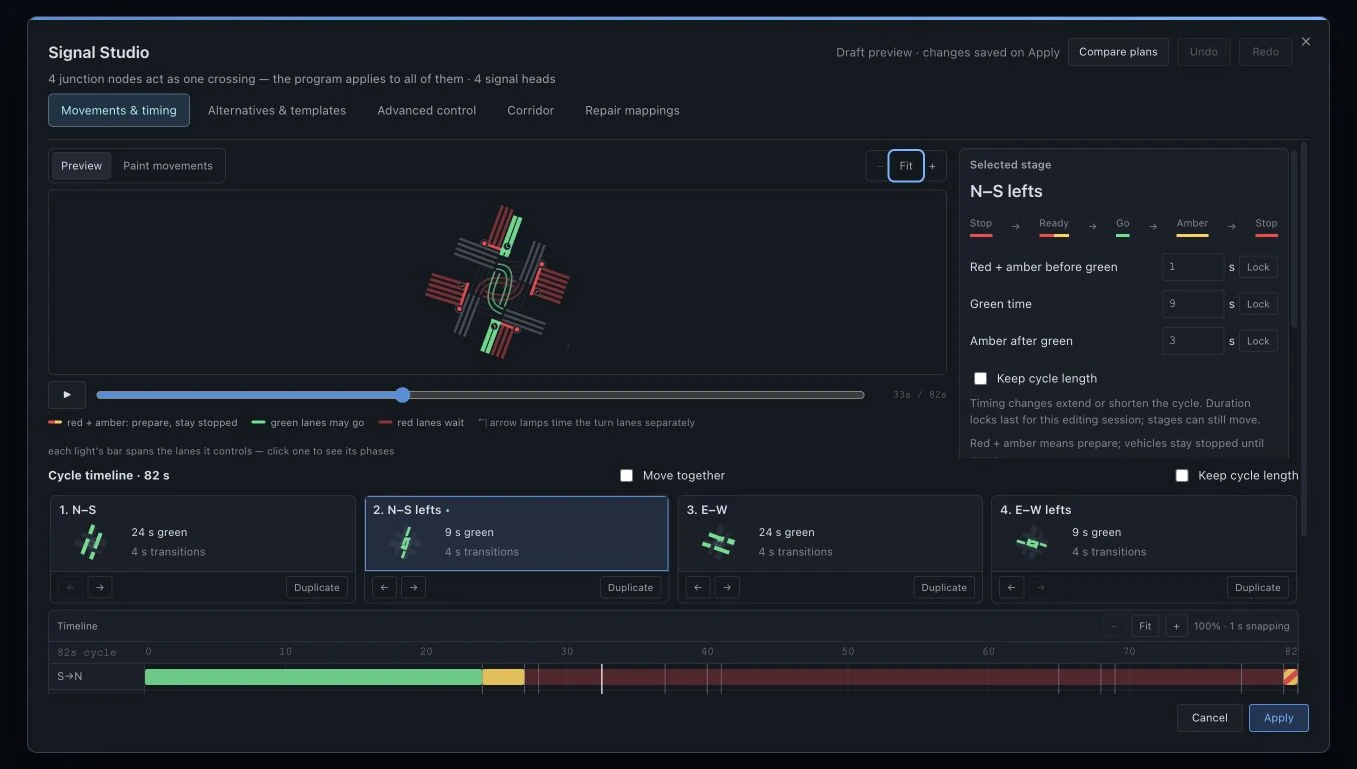
In Edit, select a signalized junction and open the inspector. Under Signals, choose “Open signal editor…” to enter Signal Studio. Its map, stage cards and timeline let you choose which movements receive green and when. The next chapter walks through editing, conflict repair, alternatives and comparison.
Imported crossings receive a starting timing plan. Several nearby junction nodes can form one crossing; Signal Studio shows the member count and edits their coordinated program together. Review movement assignments after changing the crossing geometry. Changes stay in a draft until Apply; Cancel discards them.
Interchange templates
Complex grade-separated layouts can be generated parametrically instead of drawn by hand. The Complex-junction configuration section converts a junction to a template — cloverleaf, diamond, single-point urban interchange (SPUI), trumpet, roundabout and grade-separated variants — with editable parameters, and the result is ordinary roads and junctions you can refine further.
Ramps
Motorway ramps imported from OpenStreetMap are attached to their merge and diverge lanes automatically during import. The same auto-connect operation can be run manually from the Edit menu after you reshape ramp geometry, and merge/diverge behavior at ramp junctions is part of the simulation's lane-change model.