Signal Studio
Signal Studio brings the crossing map, signal timings and plan comparison into one editor. Start in Edit, select a signalized junction, then choose “Open signal editor…” under Signals in the inspector. The examples below use Miklabraut × Kringlumýrarbraut in Reykjavík.
Start with a stage and preview the cycle
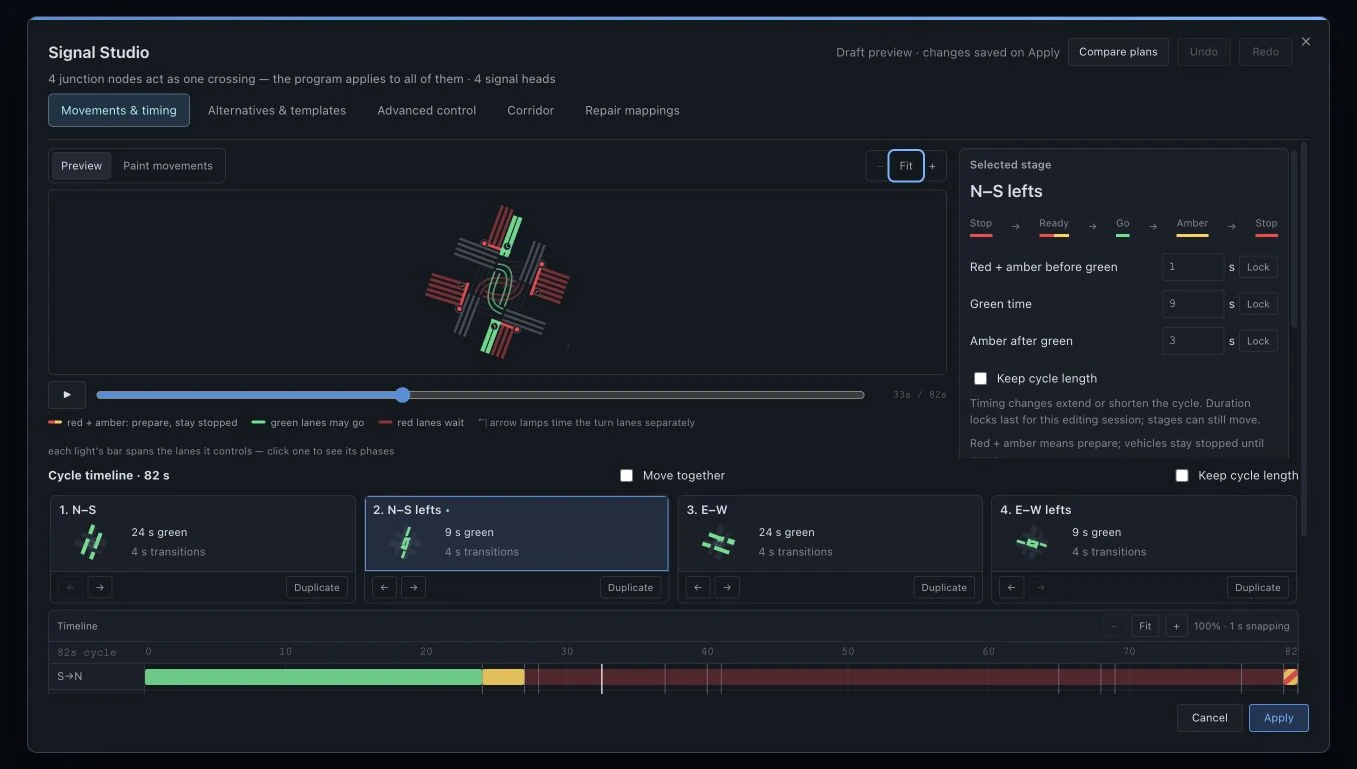
Movements & timing opens with a map of the crossing, an inspector for the selected stage, and a cycle timeline. A stage card groups a green interval with its transitions. Select a card to inspect its movements and durations, or select a signal head on the map to focus on the lights it controls. Turn arrows can have their own green windows.
Use Play preview or drag the Cycle time slider to inspect the signal sequence. Red + amber before green means prepare and remain stopped; green releases traffic; amber after green ends the release before red. Set all three durations in the selected-stage panel. The diagram makes their order explicit.
Edit the full sequencer
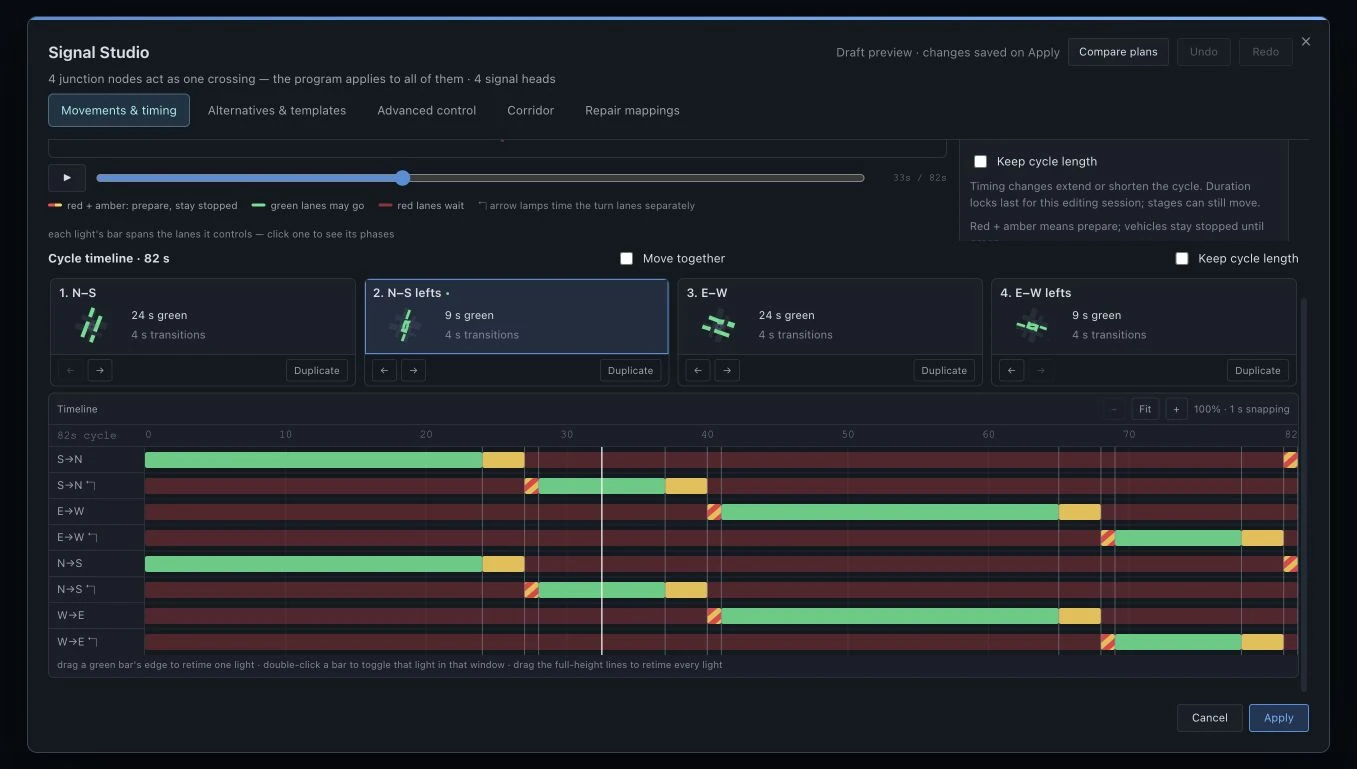
The sequencer has one row per light, including separate turn lights. Green, amber, red and striped red + amber blocks show the entire cycle. Scroll down in Signal Studio to see every row; the sequencer expands with its contents. The timeline’s + and − buttons zoom horizontally, and Fit restores the whole cycle.
- Drag a green bar’s edge to retime that light. Double-click a bar, or focus it and press Enter, to toggle that light in the displayed window.
- Drag a full-height boundary to change timing across the lights together. Changes snap to one-second steps.
- Use Keep cycle length when redistributing time within the existing cycle. Lock a duration to preserve it for this editing session; a locked stage can still move.
- Reorder or duplicate stage cards. With Move together enabled, select the stages to link so their green durations change by the same amount.
- Undo reverses an edit. Escape cancels an unfinished drag or paint stroke.
Paint movement permissions on the map
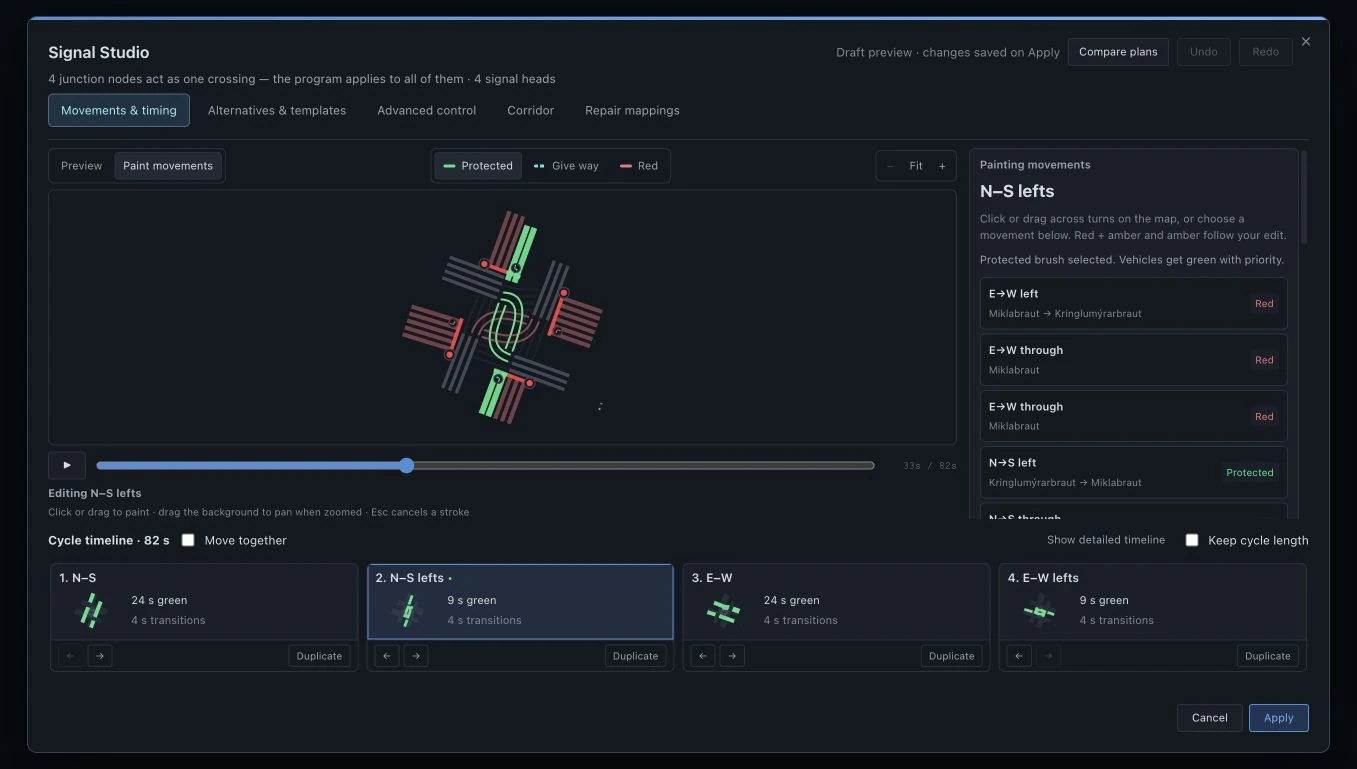
Select a stage, then choose Paint movements. Pick a brush and click a turn path, drag across several paths, or choose a movement in the list. The map and list edit the same stage, and its red + amber and amber intervals follow the movement change.
Zoom and pan the map to inspect a crowded crossing. Painting gives the map more room; choose Show detailed timeline when you also want the sequencer. Preview returns to viewing the cycle.
- Protected gives the movement green with priority.
- Give way gives a permissive green: vehicles must wait for a gap in conflicting traffic.
- Red stops the movement in the selected stage.
Review and resolve crossing greens
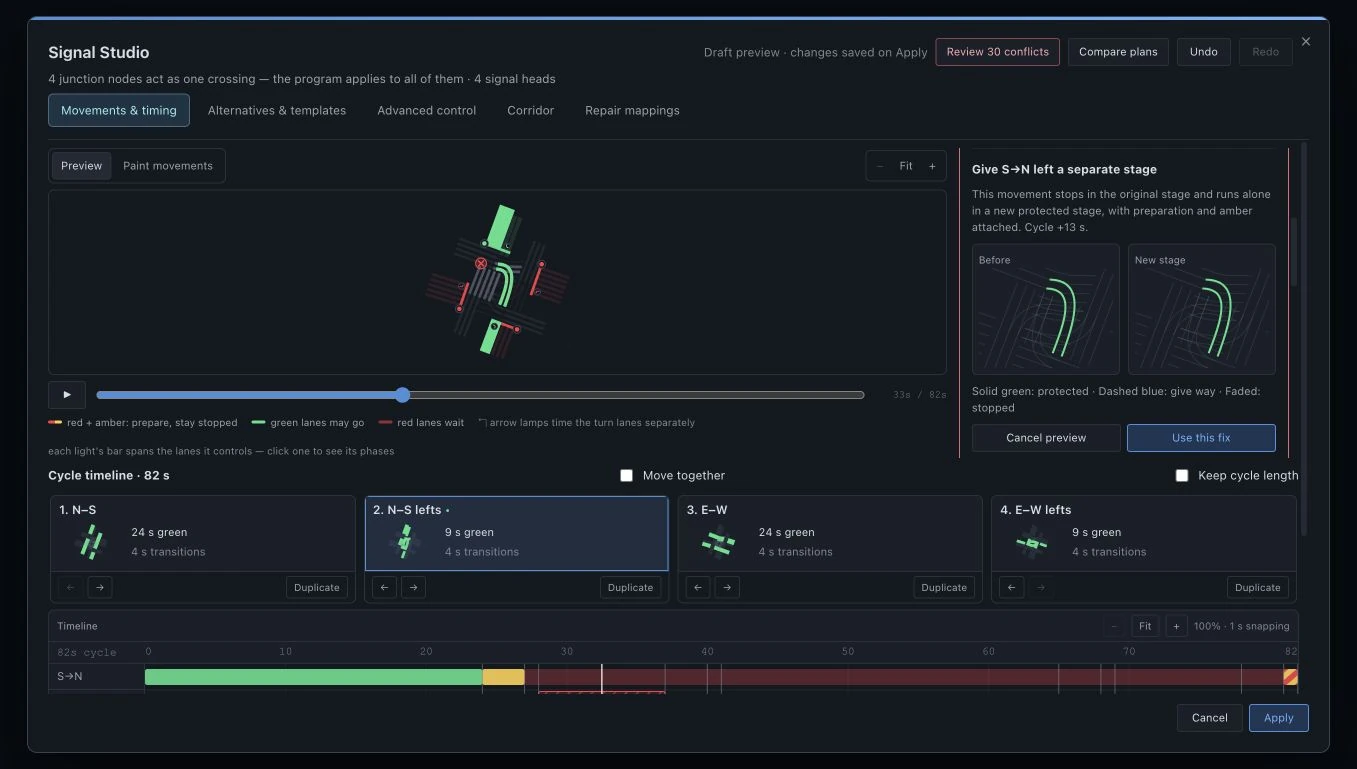
Signal Studio warns when crossing movements receive protected green at the same time. For example, adding an oncoming through green during a protected turn can create a conflict. The check follows movements through a crossing made of several nodes, including the lanes between the corner connections. It marks the crossing point and highlights the affected timeline rows.
Choose Review conflicts to isolate a pair on the map. Preview either giving one movement a separate stage or making it give way. The preview shows the changed permissions and any effect on cycle length. Use this fix updates the draft; Cancel preview leaves it alone. Repeat for any remaining conflicts.
A permissive movement intentionally yields, so it is treated differently from two crossing protected greens. Review the proposed permissions and simulated traffic before choosing a fix; removing a warning is not a substitute for checking the plan.
Save alternatives and reuse templates
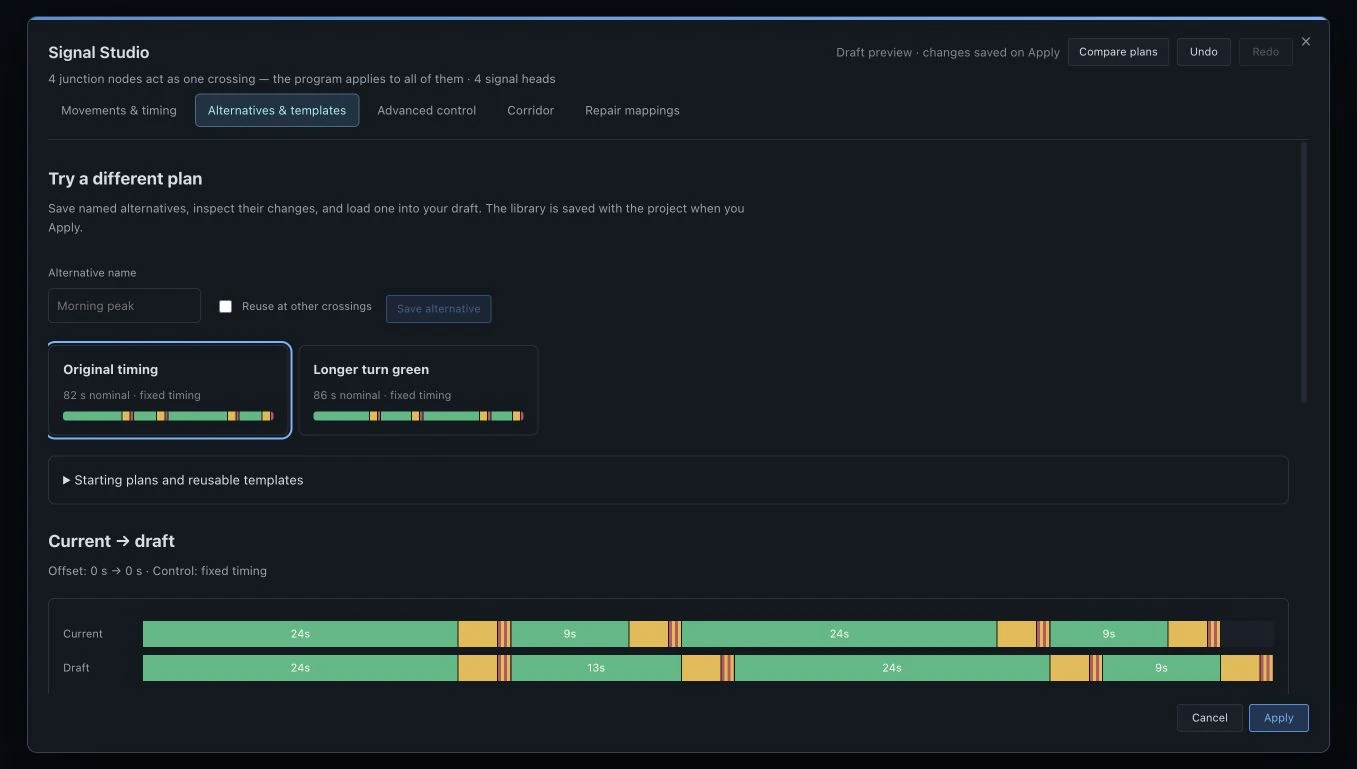
Open Alternatives & templates, enter an Alternative name, and choose Save alternative before experimenting. Saved plans appear as cards. Select one to inspect the difference from your draft, then choose Load into draft to try it. The comparison shows changed durations, interval order, movement permissions and control settings.
Check Reuse at other crossings to make an alternative a template within this project. Templates match approach directions and turn types, with rotation to align another crossing. Unresolved assignments prevent loading; try another rotation or one of the starting plans. The library is saved with the project when you Apply.
Respond to detectors and crossing demand
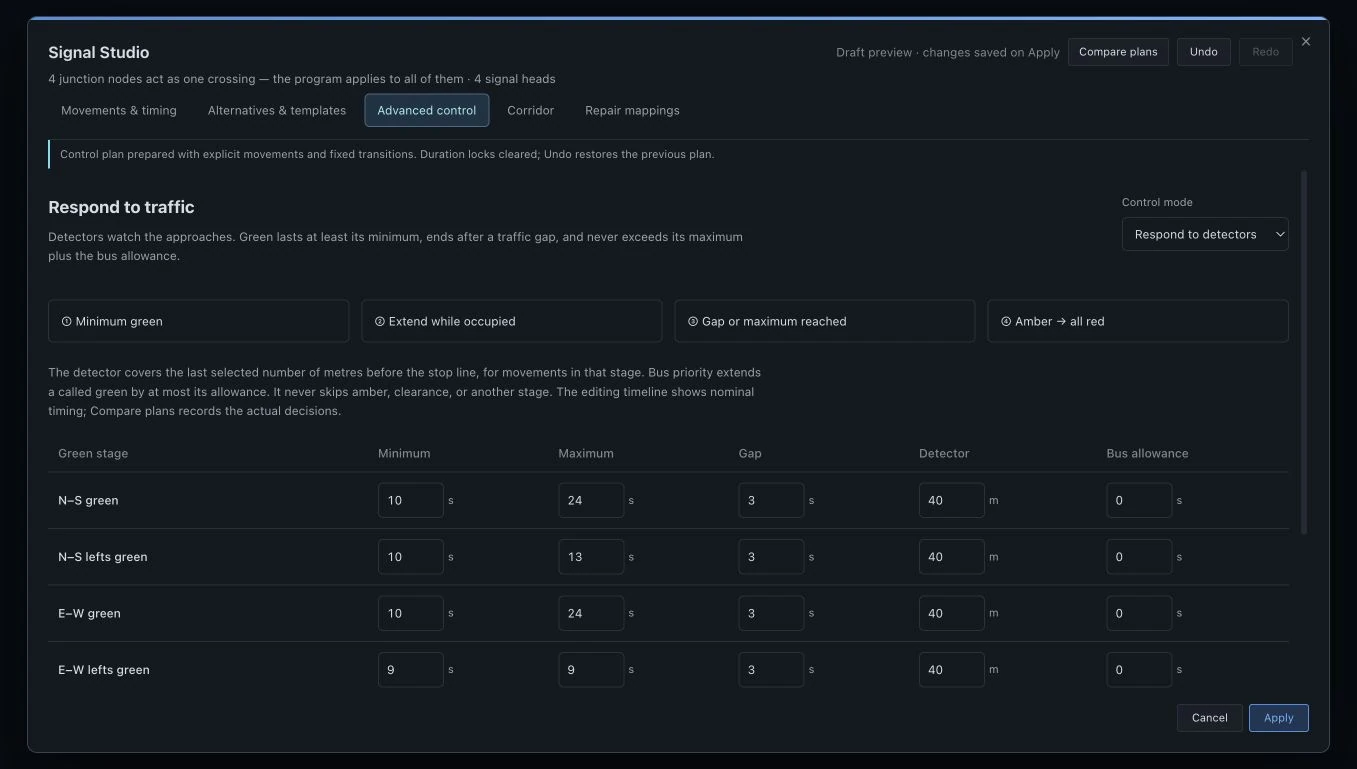
In Advanced control, choose Respond to detectors to make green duration respond to traffic. Minimum sets the earliest end of green; Maximum sets its usual upper limit; Gap ends a green after a quiet period once the minimum has elapsed. Detector sets the distance watched before the stop line for that stage’s movements. Bus allowance permits a bounded extension when a bus calls the stage. Preparation, amber and clearance are retained.
Add a Pedestrian interval or Bicycle interval for exclusive crossing service. Set arrivals per hour, crossing length, entry time and clearance time. Vehicles remain red while people enter and clear. This models waiting and completed crossing demand; it does not simulate individual sidewalk routes or interactions between people.
The editing timeline shows nominal timings for these controllers. Use Compare plans to inspect the actual decisions and resulting traffic.
Use two rings with barriers
Choose Two rings with barriers in Advanced control to run two stage sequences concurrently. Assign each green to a ring and barrier. Within a barrier, each ring progresses independently; the early ring waits red until both have finished amber and clearance. They then advance together. Exclusive pedestrian or bicycle intervals run after the last barrier.
The ring diagram shows the parallel structure, while the main timeline remains a nominal interval list. Configuration problems must be resolved before applying or comparing. Fixed coordination offsets do not apply to ring control; inspect its actual concurrency in comparison replay.
Coordinate a corridor and repair imported mappings
In Corridor, add a connected crossing, choose the green to meet, and set a travel speed. Drag its timing band or enter an offset; Align this departure aligns the chosen departure with the illustrated arrival time. The view supports up to eight crossings. The travel line assumes constant speed, so queues and variable greens can change the progression you observe in simulation.
Repair mappings is for imported timing plans with unresolved direction or turn assignments. Select an assignment and a replacement movement, inspect the highlighted path, then choose Use this mapping. The repair updates the draft while retaining interval durations and protected or yielding permissions.
Compare traffic before applying the plan
Choose Compare plans to run the Current and Draft plans independently with matching traffic demand, scenario settings and random seed. Add an active traffic source in Demand first. Choose a run duration and start Run comparison. The comparison simulates the whole network and reports results for the crossing and any corridor crossings you included.
Inspect queues, stops, delays and spillback, then replay the two runs side by side. Select an incoming lane and a movement to inspect its recorded signal history. Advanced controllers record actual detector, bus and ring decisions. Changing the draft makes previous comparison results outdated; run it again before relying on the results.
Compare results under the same demand and run settings. The comparison does not change the live simulation or save the draft.
Apply, cancel and undo
Every Signal Studio tool shares one draft. Undo and Redo work across timing edits, movement painting, proposed fixes, alternatives and corridor offsets. Apply saves the session as one project undo step, including changes at other corridor crossings. Cancel discards the session, including alternatives created during it.
After applying, save the project as usual. Signal Studio edits the simulation model; it does not program roadside signal equipment.